Clip Studio Paint: Perspective Ruler and Grids
Clip Studio Paint's perspective ruler snaps your strokes to vanishing points. Create it from the Layer menu or the Ruler tool, then toggle Snap to Special Ruler as you work.
In short
- Layer → Ruler/Frame → Create Perspective Ruler, or Ruler tool → Perspective ruler.
- Choose 1-, 2- or 3-point when creating it.
- Snap to Special Ruler (command bar or View menu) turns snapping on/off.
- Vector layers are recommended for inking with rulers.
Create a perspective ruler
- Open the ruler dialog. Choose Layer → Ruler/Frame → Create Perspective Ruler, or pick the Ruler tool and its Perspective ruler sub tool.
- Pick the type. Select 1-point, 2-point or 3-point perspective.
- Position the vanishing points. Drag the vanishing point handles and the eye level line into place.
- Enable snapping. Turn on Snap to Special Ruler in the command bar.
- Ink on a vector layer. Vector layers make ruler-based line work easy to adjust later.
Snapping on and off
With Snap to Special Ruler enabled, strokes follow the ruler — only lines toward the vanishing points (and verticals) can be drawn. Turn it off to draw freehand details such as plants or people on the same layer. You can toggle it from the command bar or the View menu.
Show the perspective grid
The perspective ruler can display a grid with equal divisions on the ground plane. Select the ruler with the Object tool to reveal the grid origin and adjust it. Depending on where the vanishing points are, the grid may not appear for every plane; in one-point perspective it is always shown.
Combining with an imported grid
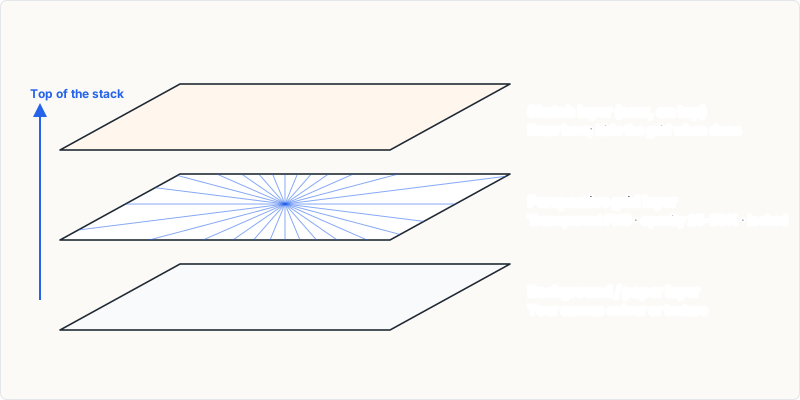
Clip Studio's ruler is excellent for snapping, but a generated grid image is handy for planning: try different horizon heights quickly, keep a five-point grid for fisheye panels, or print a page layout. Import the transparent PNG on its own layer, lower its opacity, and match the ruler's vanishing points to it.
Frequently asked questions
Why can't I draw freehand on my layer?
Snapping is on. Toggle Snap to Special Ruler off for freehand strokes.
Can other layers use the same ruler?
Yes — a ruler visible on another layer can be snapped to from other layers, depending on its display settings.